
Embroidery File Formats
DST vs PES: What's the Difference Between These Embroidery Files?
By Tajima Digitizer Team · October 4, 2026
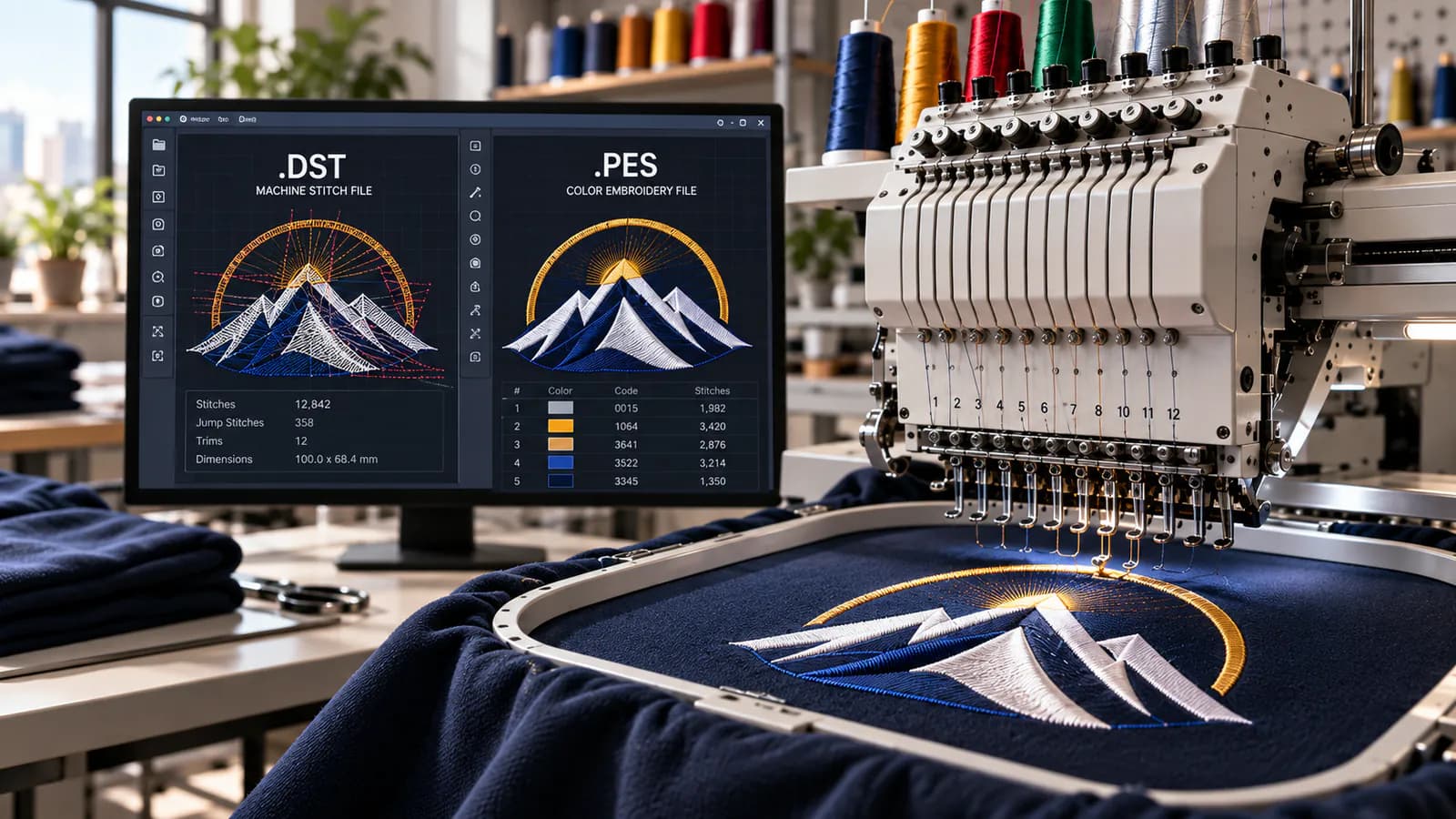
DST vs PES: Which Embroidery File Should You Use?
You receive two embroidery files: logo.dst and logo.pes. The previews look similar, but one shows the wrong thread colors. Which file should you load into your machine?
The key differences in DST vs PES are machine compatibility and color information. DST is a common stitch format in Tajima and commercial embroidery workflows. PES is widely used with Brother and Baby Lock systems and can include thread-color information that standard DST files lack.
Neither format automatically produces better stitching. Start with the format your machine supports, then check the design size, thread sequence and stitch plan.
DST vs PES at a glance
Feature | DST | PES |
|---|---|---|
File extension |
|
|
Common workflows | Tajima and commercial embroidery | Brother and Baby Lock embroidery |
Stitch instructions | Yes | Yes |
Color-change sequence | Yes | Yes |
Intended thread colors | Not stored in standard DST data | Can be stored; handling depends on version and software |
Editing | Usually starts with finished stitches | May retain more editable information in compatible software |
Machine compatibility | Widely used, but model support varies | Common in Brother and Baby Lock systems; model support varies |
Main practical advantage | Familiar format for exchanging production stitch files | Useful color and design information in compatible workflows |
If your machine accepts both, PES may make color setup easier. If an embroidery shop requests DST, send DST with a thread chart.
What is a DST file?
A DST file contains stitch movements and commands that tell an embroidery machine how to sew a design. The format is associated with Tajima and is widely used for commercial logos, uniforms, caps and patches.
Its key limitation is color information. A standard DST file can tell the machine when to change colors without identifying the intended thread shade. Brother's explanation of DST confirms that the machine assigns display colors when loading Tajima data.
That makes a separate thread chart useful. It should list each color block in sewing order, along with the thread brand and number when exact shades matter.
What is a PES file?
A PES file is an embroidery design format used in Brother and Baby Lock workflows. It contains stitch data and can also carry thread-color information and other design details. The libembroidery PES implementation documents version-dependent structures, including thread data.
Those details can help a compatible program display the design closer to its intended appearance. They do not guarantee that every program or machine will show the same colors or retain the same editing features.
PES can also serve as a working design file in Brother PE-DESIGN. A PES exported from another program, however, may contain finished stitches without the original editable objects. Keep the working file from the software used to create the design.
Why does a DST file show the wrong colors?
Imagine a logo that should sew in this order:
Navy background
White lettering
Red outline
The DST file may preserve the three sewing blocks while the machine displays them as green, yellow and blue. That does not necessarily mean the stitch design is wrong. The display colors may simply be defaults.
For production, use an approved color sequence such as this illustrative chart:
Sewing block | Design area | Intended thread |
|---|---|---|
1 | Background | Navy; use the approved brand and thread number |
2 | Lettering | White; use the approved brand and thread number |
3 | Outline | Red; use the approved brand and thread number |
Compare the chart with the machine's sewing order before starting. A color block marks a step in the sequence; it does not always represent a unique color. A design may return to navy after sewing another section.
PES can carry color data, but the thread you load still determines the sewn color. Keep the chart for either format when matching a customer's logo.
Which machines use DST and PES?
The machine brand is a useful starting point. The exact model is the deciding factor.
Tajima and commercial production: DST is a common choice. Confirm the format your machine or production partner requests.
Brother: PES is common, and some models also read DST. For example, Brother lists PES, PHC and DST for the Innov-is M240ED.
Baby Lock: PES is common here too, but DST support is available on some models. The Baby Lock Verve specifications list both PES and DST as input types.
A supported extension is only one requirement. Check the machine's sewing area, design limits, transfer method and any file-version requirements in its manual.
For example, a compatible PES file can still be too large for the available sewing field. Converting it to DST will not make it fit.
Does DST or PES produce better embroidery?
Neither format has an inherent quality advantage. A correctly exported design can use essentially the same stitch plan in either format.
The result depends on how the design was digitized and how it is sewn. Key factors include:
Stitch density: Too much stitching can make a design stiff or cause thread breaks.
Underlay: Supporting stitches help stabilize the fabric beneath the visible design.
Pull compensation: Adjustments help account for fabric movement as stitches form.
Sequence: The sewing order affects alignment and travel between areas.
Production setup: Fabric, stabilizer, hooping, needle, thread and tension all matter.
Consider the same logo on a polo and a cap. The cap's curve and center seam may call for a different stitch plan. Saving the polo design in another format does not prepare it for the cap.
When ordering cap digitizing, specify the cap type and placement. For patch digitizing, include the finished size and border requirements. The intended product matters as much as the requested extension.
Can you convert DST to PES or PES to DST?
Yes. Embroidery software that supports both formats can import one and save or export the other. Renaming the extension does not convert the file.
Converting DST to PES
Import the DST into compatible embroidery software.
Confirm the design dimensions and sewing sequence.
Assign thread colors from the approved chart.
Save or export as a PES version supported by the receiving system.
Reopen the exported file and review it before sewing.
Conversion cannot recover thread choices or original design objects that are absent from the DST. Any colors added during conversion come from the software's defaults or your selections.
Converting PES to DST
Open or import the PES in compatible software.
Record its thread sequence in a separate chart.
Export as DST without changing the finished size unless a size change is intended.
Check color changes, jumps and trim behavior in the exported file.
Sew a sample before using it for an important order.
Standard DST output will not retain the PES thread palette. Export settings also matter: Brother's PE-DESIGN saving guide includes DST trim-related settings and explains that saving to an older PES version converts designs to stitch patterns.
Whenever possible, export both formats from the original working design. This gives you more control than repeatedly converting between delivery files.
Can you edit or resize DST and PES files?
You can often edit both formats, but the available changes depend on the file's contents and the software opening it.
With finished stitch data, a program may let you move or delete stitches, change color assignments and adjust the sewing sequence. That is different from editing the shapes, lettering and settings that originally generated those stitches.
PES may preserve more of that information in a compatible workflow. Do not assume every PES has it.
For a major size change, return to the working design or ask the digitizer to revise it. Enlarging a finished stitch file without recalculating stitches can change density and stitch lengths. Shrinking it can crowd stitches and make small lettering difficult to sew.
Keep the editable source file alongside the machine exports, approved dimensions and thread chart.
What if your design starts as a JPG, PNG or SVG?
An image must be digitized before it becomes a usable DST or PES file. The digitizer turns artwork into a stitch plan by choosing stitch types, density, underlay, direction and sequence.
Vector artwork can provide cleaner shapes to work from, but it still needs embroidery decisions. Automatic digitizing tools can produce a starting point; the result needs review for the intended fabric and size.
The workflow is:
Artwork → digitizing → DST or PES export → test sew-out
If you already have a stitch design, you may only need format conversion. If you have an image, you need digitizing. If the existing design sews poorly, it needs stitch edits or re-digitizing.
How to request the right embroidery file
Give your digitizer enough detail to prepare the design for its actual use:
Detail | What to provide |
|---|---|
Artwork | The clearest image or vector file available |
Finished size | An exact width or height, such as 3.5 inches wide |
Product and fabric | Piqué polo, fleece jacket, structured cap, towel or patch |
Placement | Left chest, cap front, sleeve or jacket back |
Machine | Manufacturer and exact model |
File format | DST, PES or the format required by the receiving shop |
Thread colors | Sewing order, thread brand and approved thread numbers |
For example: “Please digitize this logo at 3.5 inches wide for the left chest of a piqué polo. I need PES for my Brother machine. The attached chart lists the approved thread colors.” Include the exact machine model when sending the request.
If another shop will sew the order, ask which format it wants before placing the digitizing order.
Quick checks when a file will not load
Before paying for another conversion, work through these checks:
Confirm the format. Check the exact machine manual, not just the manufacturer's name.
Check the sewing field. Compare the design's width and height with the machine's supported area.
Check the file version. If the receiving system requires an older PES version, export that version in compatible software.
Check the transfer instructions. Follow the manual's requirements for USB media, folders and filenames.
Reopen the file in embroidery software. If it cannot be read there either, ask the sender for a fresh export.
If the file loads but the colors look wrong, check the thread chart before assuming the design is damaged. If it loads but sews poorly, review the stitch plan and production setup.
Frequently asked questions
What is the biggest difference between DST and PES?
Standard DST stores stitch movements and color changes without the intended thread palette. PES can include thread-color and additional design information. Machine support determines which one you can use.
Is PES better than DST for a Brother machine?
PES is often convenient because it can retain color information. Some Brother models also accept DST. Follow your model's supported formats and check the color sequence before sewing.
Does converting DST to PES improve stitch quality?
No. Conversion changes the file format. It does not automatically correct density, underlay, lettering or sewing order.
Will converting PES to DST remove the colors?
Standard DST does not store the intended thread palette. The color-change sequence can remain, so keep a separate chart showing which thread belongs to each sewing block.
Should an embroidery shop keep both formats?
Keeping both can help when customers or production partners use different machines. Also retain the original working design, approved dimensions and thread chart so future revisions do not depend on exported stitch files alone.
Get DST or PES for your next design
Choose the format your machine or embroidery shop supports. Check the finished size and thread sequence, then test the design on the intended material before production.
Tajima Digitizer provides DST, PES and other machine formats through its embroidery digitizing service. Send your artwork, finished size, fabric and machine model to request a file prepared for your project.