
Embroidery Digitizing
How to Convert JPG to PES File for Embroidery
By Tajima Digitizer Team · October 5, 2026
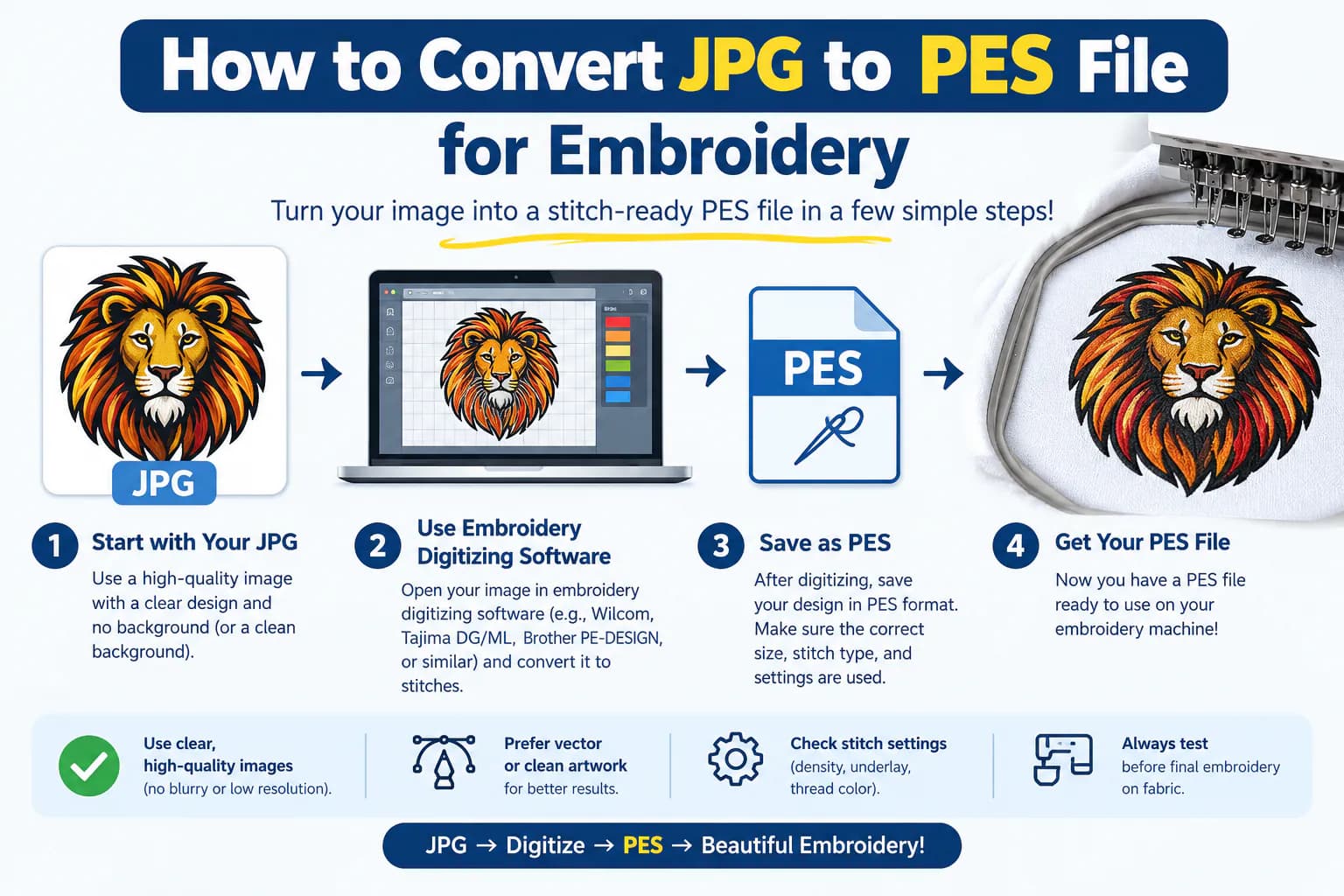
How to Convert JPG to PES File for Embroidery
To convert a JPG to a PES file for embroidery, you need to digitize the artwork into stitches and save the resulting design in PES format. The process includes choosing stitch types, planning the sewing order, adjusting the design for the fabric, and testing the finished file.
A JPG contains a picture. A usable embroidery design needs instructions for creating that picture with thread. Renaming logo.jpg to logo.pes does not create those instructions.
You can prepare the design yourself with embroidery digitizing software or use a professional service. At Tajima Digitizer, we prepare machine embroidery files for logos, apparel, caps, patches, and other custom projects.
This guide explains the workflow, software options, common mistakes, and the information to provide when requesting a PES file.
What is the difference between JPG and PES
JPG, also written as JPEG, is a raster image format. It represents an image with pixels and is commonly used for photographs and artwork previews.
PES is an embroidery file format supported by many Brother embroidery machines. Its embroidery data lets a compatible machine follow a stitch sequence. Support depends on the exact machine and the design’s specifications, so check your model’s manual before choosing an export format (Brother machine file requirements).
File | Main purpose | What it provides |
|---|---|---|
JPG or JPEG | Displaying a picture | Pixel colors and image detail |
Editable digitizing project | Building and revising embroidery | The working design and the editing information retained by the software |
PES | Transferring embroidery to a compatible machine | Embroidery data, including stitch information and color sequencing |
An editable project and a machine file can sometimes share a format, depending on the software. Preserve the working version your digitizing program recommends so future changes are easier.
Can you convert JPG to PES automatically
Some embroidery programs can generate stitches from an image. Brother PE-DESIGN 11, for example, includes an Auto Punch function. Automatic tools can provide a starting point, especially for artwork with a few distinct colors (Brother PE-DESIGN 11 Auto Punch command).
The generated result still needs review. A tool may interpret compression marks, shadows, or an unwanted background as shapes to embroider. Small lettering and closely spaced objects also need attention.
A photograph presents a different challenge from a flat logo. Shading and subtle color transitions may require a photo-specific embroidery workflow or a simplified interpretation. Brother’s support documentation identifies limitations when using Auto Punch with photographs and shaded images (Brother Auto Punch limitations with shaded images).
Judge the result by a sample sew-out as well as the screen preview. A design that looks tidy on a monitor may need adjustments once it is stitched onto fabric.
Choose a method that fits your project
There are two practical routes: learn to digitize the design yourself or send a detailed brief to a digitizing service.
Option | Useful when | What to expect |
|---|---|---|
Inkscape with Ink/Stitch | You want a free route and are willing to learn digitizing | Prepare vector objects, set embroidery properties, simulate, and export |
Brother PE-DESIGN | You want Brother’s digitizing tools and image-based features | Use the tools available in your edition, then review and test the design |
Professional digitizing | You need a file prepared around a specific garment and production requirement | Supply artwork, dimensions, fabric, machine details, and any special instructions |
Ink/Stitch supports PES export and works with vector artwork in Inkscape. Its workflow includes preparing the design, configuring stitches, previewing, exporting, and testing (Ink/Stitch workflow; Ink/Stitch supported file formats).
Our custom embroidery digitizing service is an option when you want the stitch file prepared for your project.
How to convert JPG to PES step by step
1. Prepare clear artwork
Start with the clearest original image you have. Crop away unrelated content and identify which parts should actually be stitched.
Look closely at small letters, thin outlines, and spaces between shapes. A tiny detail that is visible when enlarged on screen may be difficult to reproduce at the finished embroidery size.
As a practical example, consider a logo with a small tagline beneath the company name. Before digitizing, decide whether the tagline must remain, can be enlarged, or can be removed with the design owner’s approval.
If you have a cleaner vector original, provide it as well. Increasing a blurry JPG’s pixel dimensions cannot reconstruct missing artwork detail reliably.
2. Set the finished size and garment requirements
Choose the embroidery dimensions before creating the stitches. Specify width and height in millimeters or inches, and identify the intended placement.
A useful brief might read:
Company logo, 90 mm wide, left chest on a cotton piqué polo. Keep the business name readable, use three thread colors, and supply PES for the specified Brother machine.
Also record the available hoop or embroidery field, fabric type, intended thread, and whether the design is flat embroidery or a specialty application.
For a company logo, our logo embroidery digitizing service lets you provide the size and garment details needed to plan the design.
3. Import the JPG into your digitizing workspace
Use the image-import function in your software. The JPG usually serves as artwork to trace, redraw, or process with an automatic digitizing tool.
Separate the design into meaningful objects. A logo could contain lettering, a filled emblem, and an outline. Planning those parts individually gives you control over their stitching.
For Ink/Stitch, the artwork must be prepared as suitable vector paths. Automatic tracing can help create shapes, but the resulting vectors still need cleanup and embroidery settings (Ink/Stitch workflow).
4. Assign appropriate stitch types
Different parts of a design need different stitch construction.
Design element | Stitch type to consider |
|---|---|
Fine lines and simple outlines | Running stitches |
Suitable lettering, narrow borders, and columns | Satin stitches |
Larger solid areas | Fill stitches |
These are starting applications. Shape, width, fabric, and the intended appearance determine the final choice. Ink/Stitch’s stitch library documents the available constructions and their parameters (Ink/Stitch stitch library).
Avoid turning every visible line into a heavy border. Assess whether an element needs a filled shape, a narrow stitched line, or simplification.
5. Adjust density, underlay, and compensation
These settings help the stitches work with the material.
Density describes how closely stitches are placed. Fill spacing affects coverage and how much thread is packed into an area. Start with guidance for your thread and fabric, then refine it through testing.
Underlay is foundation stitching beneath the visible stitches. It helps support the top stitching and manage the fabric surface (Ink/Stitch fill stitch settings).
Pull compensation adjusts the digitized shape to account for the way stitching can draw the fabric inward. For example, Ink/Stitch’s satin settings can expand stitch placement to compensate for a column sewing narrower than drawn (Ink/Stitch satin column settings).
There is no single density or compensation value that suits every JPG, garment, and thread combination. A small logo on a lightweight knit and a larger design on a stable fabric need separate evaluation.
6. Plan the stitch sequence and color changes
Decide which objects should sew first and how the machine will travel between them.
Use the stitch simulation to inspect the sequence. Watch for unnecessary travel across visible areas, repeated stitching in the same spot, and color changes that could be reorganized without changing the intended layering.
Treat color order as part of the construction. Sewing every object of one color together is not always suitable if some objects need to appear above or beneath others.
7. Save an editable version and export PES
Keep the working design before exporting. In Ink/Stitch, retain the SVG with its embroidery settings. The documented export route is File → Save a Copy, followed by selecting the required embroidery format (Ink/Stitch importing and exporting files).
Choose PES only when it is appropriate for your machine. If your software offers PES version or machine compatibility options, use settings supported by the model receiving the file.
Reopen the exported file in a compatible embroidery viewer or your digitizing software. Confirm that the dimensions and sewing sequence match your expectations.
8. Transfer the design and stitch a sample
Follow your machine manual’s transfer instructions. The permitted USB media, folder arrangement, filename rules, and other requirements can vary.
Test on the actual fabric, or on a sample that closely matches it, using the planned thread, needle, and stabilizer. Check lettering, outlines, fill coverage, and alignment.
Release the sample from the hoop and look for puckering or distortion. Record any problem and adjust the design or setup before starting the final garment or production run.
A free JPG to PES workflow with Ink/Stitch
For a simple design, use this sequence:
Import the JPG into Inkscape.
Trace or redraw the required shapes as vector paths.
Remove unnecessary details and set the finished dimensions.
Prepare the objects for running, satin, or fill stitching.
Select the objects and configure their settings through Extensions → Ink/Stitch → Params.
Review the stitch sequence in the simulator and correct problems.
Save the editable SVG, then export a PES copy.
Stitch a sample and revise as needed.
This is a digitizing workflow rather than a one-click file rename. Begin with a simple design so you can learn how object construction affects the result (Ink/Stitch workflow; Ink/Stitch importing and exporting files).
Using Auto Punch in Brother PE-DESIGN 11
After importing the image into Layout & Editing, Brother documents the Auto Punch command under the Image tab, in the Stitch Wizard group (Brother PE-DESIGN 11 Auto Punch command).
Review which image areas are included, the generated color regions, and the stitching before saving your design. Consult the manual for your installed version because available controls can differ.
For an image with gradients or photographic shading, assess whether the software’s photo-oriented tools are more appropriate. An automatic result should be treated as a draft until its stitch construction and sample sew-out have been checked (Brother Auto Punch limitations with shaded images).
Why a PES file may not appear on your machine
A file ending in .pes can still fail to load if it does not meet the machine’s requirements.
Check these items against your model’s manual:
The PES format or version is supported.
The design fits the permitted embroidery field.
Stitch count, color count, and other design limits are not exceeded.
The filename uses supported characters.
The transfer method and storage location are correct.
The file is actual embroidery data and has been extracted from any download archive.
Brother documents size, design-limit, filename, and USB-location restrictions for specific models. Apply the instructions for your own machine rather than assuming another model’s limits are identical (Brother machine file requirements).
Prepare specialty designs for their actual application
A logo used on several products may need more than one digitized version.
For a curved cap, provide the cap style and embroidery placement. Our cap and hat digitizing service addresses the construction and stitching sequence needed for cap work.
For raised embroidery, tell us which areas should use foam. 3D puff digitizing plans the stitch construction around that raised effect.
For a patch, specify its finished dimensions, background coverage, and border method when requesting custom patch digitizing.
Selecting PES determines the delivery format. The digitizing still needs to suit the product being embroidered.
Frequently asked questions
Can I rename a JPG file to PES
No. Changing the extension does not create embroidery stitches. The artwork must be digitized and saved as valid embroidery data.
Can I convert JPG to PES for free
Yes. Inkscape with Ink/Stitch provides a free software route that supports PES export. You still need to prepare the artwork, configure the stitches, and test the result (Ink/Stitch workflow; Ink/Stitch supported file formats).
Can every JPG become a good embroidery design
Many images can be adapted, but some need simplification. Tiny text, complex shading, and very fine detail may need changes at the intended size. Discuss those changes before approving the design.
Can an embroidery machine convert the JPG itself
Some machines include image-to-embroidery features. Availability and supported image types depend on the model. Check its manual; the image still has to be interpreted as embroidery through that feature (Brother supported formats and model-specific image features).
Can I resize the PES file later
Check how your software handles resizing and recalculates stitches. A large size change may require revising lettering, spacing, and stitch construction. Keep the editable working design and request separate sizes when needed.
Get a PES file prepared for your design
Send Tajima Digitizer your JPG, finished embroidery dimensions, fabric or garment type, placement, and exact machine model. Include preferred thread colors and any cap, patch, or 3D puff requirements.
Our team can prepare a stitch file around those specifications and supply PES where it is appropriate for your machine. Review how our digitizing process works, or contact Tajima Digitizer for a custom quote.
Keep the approved design details with your sample sew-out so future orders can use the same tested reference.
Technical sources
For the technical instructions in this guide, refer to the official Brother documentation and Ink/Stitch manuals below. Use the documentation for your exact machine model and installed software version.