
Embroidery Digitizing
How to Digitize a Logo for Embroidery: Step-by-Step
By Tajima Digitizer · October 1, 2026
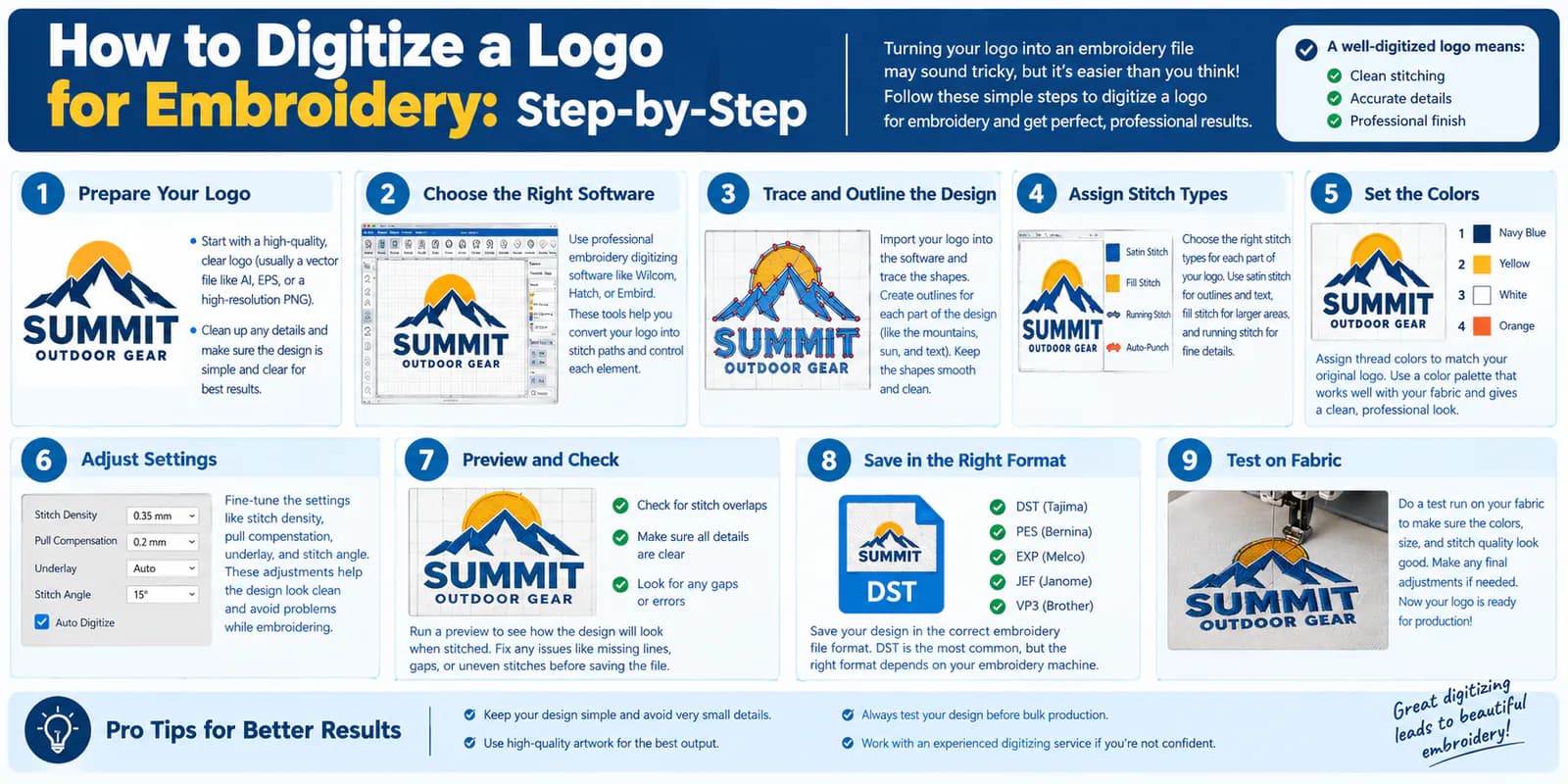
Digitizing a Logo for Embroidery: A Step-by-Step Guide
Digitizing a logo for embroidery turns your artwork into a stitch file your embroidery machine can sew. The file tells the machine where to place stitches, change colors, and move between shapes.
The challenge is keeping the logo clear on fabric. A small word can become hard to read. A border can shift away from its fill. Too much thread can leave a polo stiff or puckered.
Start by setting the logo's final size. Then prepare the artwork, choose stitches, and adjust them for the fabric. Plan the sewing order and test the file before starting your order.
The seven steps below explain how to make those choices.
What you need to digitize a logo
Gather these details before you start:
Item | What you need |
|---|---|
Artwork | A clear vector file, PNG, or JPG |
Finished size | The exact width and height of the stitched logo |
Garment | Fabric type, placement, and any seams near the design |
Machine | Model, supported file format, and usable sewing area |
Thread | Approved colors and thread codes, if available |
Test materials | Matching fabric, backing, thread, and needles; topping if needed |
You also need embroidery digitizing software that can create stitch objects. These are shapes with their own stitch type and settings.
Options include Wilcom EmbroideryStudio, Hatch Embroidery, and Embrilliance StitchArtist. Check the tools in the edition you choose. Some programs only let you view designs, add text, or convert files that already contain stitches.
Use a physical thread chart to choose colors when possible. Screen colors are a reference; the thread and fabric determine the final look.
Step 1: Set the size and prepare the artwork
Set the logo to its finished width and height in your software. Check that it fits the sewing area and the garment placement.
Next, inspect the smallest details at that size:
Can you read every word?
Are the thin lines clear?
Are the spaces inside letters still open?
Do shadows or gradients need a simpler treatment?
Keep the parts that make the logo easy to recognize. Ask the logo owner to approve changes to text, colors, or shapes.
Example: Suppose a three-color badge will be 3.5 inches wide on a polo. It has an icon, a company name, and a tiny tagline. Check the tagline first. If it is too small, agree on a larger logo or a version without that line.
Solving that issue now saves time later. Tracing every detail will not make tiny text easier to sew.
For a cap, confirm the space available in the actual frame. Check the height, width, and position of the center seam.
Step 2: Match the backing and settings to the fabric
Fabric moves as stitches pull on it. Backing, also called stabilizer, supports it during sewing. Underlay is the layer of stitches beneath the visible thread.
Choose support for the garment and the amount of stitching:
Fabric or item | Starting approach |
|---|---|
Polo or stretchy knit | Use suitable cut-away backing and underlay that supports the design |
Stable twill or denim | Tear-away backing can suit stable woven fabrics; check the design's needs |
Fleece or terry cloth | Consider water-soluble topping to keep stitches above the pile, plus suitable backing |
Finished cap | Match backing, framing, and sewing order to the cap's structure |
Madeira's stabilizer guide explains the role of each backing type. Its topping guide covers textured fabrics.
Start with your software's closest fabric preset. Then review the settings for each part of the logo.
Stitch density controls how closely the stitches sit together. More density adds coverage, but it can also add bulk. In programs that measure stitch spacing, a larger spacing value means lower density.
Check how your software labels that setting. Use the sample to find enough coverage without making the garment stiff.
Step 3: Choose stitch types for each shape
Import the artwork as a reference. Build separate objects for the icon, text, border, and other shapes.
Choose the stitch type that suits each part:
Stitch type | Best suited to | Main concern |
|---|---|---|
Satin stitch | Letter strokes, borders, and narrow solid shapes | Wide spans may need split satin or fill to avoid loose stitches |
Fill stitch, or tatami | Large areas of color | Dense fills and stacked layers can add bulk and distortion |
Running stitch | Fine lines, light outlines, and travel paths | A single pass may be hard to see on textured fabric |
Set stitch angles to follow the shape and create the look you want. Curved satin columns may need several angle changes.
Look for places where shapes overlap. Keep enough overlap to prevent gaps, while avoiding layers of heavy stitching that serve no purpose.
For the badge example, the broad icon may use fill stitch. The company name may use satin stitch. A thin accent line may use running stitch.
Auto digitizing can help with suitable artwork. Review the shapes, angles, layers, and travel paths it creates. Test the result on fabric before treating it as a finished embroidery design.
Step 4: Adjust small lettering
For small text, check letter height, stroke width, and the spaces within each letter. These details affect whether the words stay clear after sewing.
Use an embroidery font within its recommended size range when the brand allows it. For an exact custom font, work through the letter strokes by hand.
Font limits vary. Hatch's font guide lists Helvetica Sm. down to 4 mm. Several other fonts start at 7 mm or higher. That range applies to those specific fonts, so test custom logo text at its final size.
To improve lettering:
Open tight gaps between letters.
Keep the centers of letters such as “a” and “e” clear.
Adjust density and underlay for the text itself.
Review script joins and crossing strokes.
Simplify fine serifs or enlarge the text with approval.
Use running or bean stitch for text designed as a line drawing. Small filled letters may still need satin stitch or a different font.
Finer thread can help with some small details. Match it to a suitable needle and test the machine settings.
Keep the badge's company name and tagline as separate objects. That lets you refine the tagline without changing the coverage of the main name.
Step 5: Plan the sewing order and pull compensation
Stitch order controls how the design builds on the fabric. Plan it around the layers, nearby shapes, and garment structure.
Then reduce extra trims and color changes where you can. Grouping all shapes of one color can save time, but it must preserve the design's layers and alignment.
For caps, center-out and bottom-up sewing paths can help manage alignment. Wilcom's lettering tools include these options. Choose the path that suits the design and cap.
Review each object's start and end points. Hide travel stitches under later stitching where possible. Trim exposed connectors that would spoil the logo.
Pull compensation helps shapes keep their intended width as fabric pulls inward. It extends stitches beyond the drawn edge. Wilcom's pull compensation guide explains how it works with backing and underlay.
Start with the fabric preset and adjust from the sample. Applying one value to every shape can cause new gaps or overlaps.
Use the stitch simulator to watch the sewing path. Check for exposed jumps, repeated travel, and unwanted layers before exporting your test file.
Step 6: Run a test stitch-out
A test stitch-out shows how the file behaves on fabric. Sew the design at its final size with the planned thread, needle, backing, and hooping method.
Use the intended fabric or a close match. For a cap design, test on a similar cap so you can check the seam and curved surface.
Release the sample from the hoop. Remove temporary support as needed, then inspect the logo and fabric.
Problem | What to check |
|---|---|
Puckering | Hooping, backing, tension, density, and stacked stitch layers |
Letters merge | Letter spacing, stroke width, density, underlay, and thread size |
Border misses the fill | Fabric movement, stitch order, direction, overlap, and pull compensation |
Stitches sink into the fabric | Topping, underlay, and whether fine details suit the texture |
Thread breaks or loops below | Threading, needle condition, tension, short stitches, and crowded areas |
Use these checks to narrow down the cause. Fixing every issue by adding density or compensation can create more problems.
Change the part that caused the fault, record the setting, and sew another sample. For washable garments, also inspect the sample after washing it according to the care label.
Keep the approved sample or a clear photo with your notes. It gives future orders a useful reference.
Step 7: Save and export the embroidery files
Save the native working file before exporting. It keeps the editable shapes and stitch settings for later changes.
Then export a machine file in the format your equipment supports. Common embroidery file formats include:
Format | Common association |
|---|---|
DST | Tajima and many commercial machines |
PES | Brother and Baby Lock |
JEF | Janome |
EXP | Melco and some BERNINA workflows |
Check the exact machine model's requirements. Wilcom's format reference lists a range of machine formats.
Include a production sheet with the finished size, color order, thread codes, and placement notes.
Name files so the size and garment are clear. For example, brand-left-chest-89mm-polo-v2.dst separates that version from a cap file.
Confirm that the machine can open the export and that the design fits its sewing area. Review any new export made after the approved test.
Is digitizing a logo for embroidery worth learning?
Learning to digitize can be useful if you create designs often. Start with a simple logo on stable fabric. Allow time to learn the tools and sew samples.
A logo digitizing service can suit a one-off order, a close deadline, or artwork with difficult text and detail. Compare the quote with the cost of software, learning time, and test materials.
Before ordering, ask about the machine format, color sheet, revisions, and editable file if you need one. Also ask whether the sample image is a software preview or a photo of actual embroidery.
You can view our custom logo digitizing example and explore our embroidery digitizing services.
Frequently asked questions
Can you digitize a PNG or JPG logo?
Yes. A clear PNG or JPG can serve as the artwork reference. A vector file often makes edges easier to trace. Both still need stitch settings and a test on fabric.
Can you digitize a logo for free?
Yes. Ink/Stitch is a free, open-source digitizing platform based on Inkscape. Check that its tools and export formats meet your needs. You will still need time to learn and materials for testing.
Can you resize a digitized logo?
Yes, but review the result. Suitable software can regenerate stitches when you resize the native objects. Scaling a machine file may need extra processing. Test the new size, especially if the text becomes smaller.
Can you use the same file on a polo and a cap?
Sometimes. Test both placements first. A cap's seam, curve, frame, and stitch order can change the result. Separate files may work better for the two garments.
Does a vector file need embroidery digitizing?
Yes. A vector file defines shapes and colors. The embroidery machine needs a stitch file with sewing instructions. Import the vector artwork, build the stitch objects, and export a supported machine format.
Prepare your logo for the next order
Set the size, plan for the fabric, and approve a real stitch-out. These steps help you create a logo file you can use with confidence.
Need help with your design? Request a logo digitizing quote from Tajima Digitizer. Send your artwork, finished size, garment type, placement, and machine format so we can assess the job.