
Embroidery Digitizing
Embroidery File Formats: What They Are and Which to Use
By Tajima Digitizer · September 15, 2026
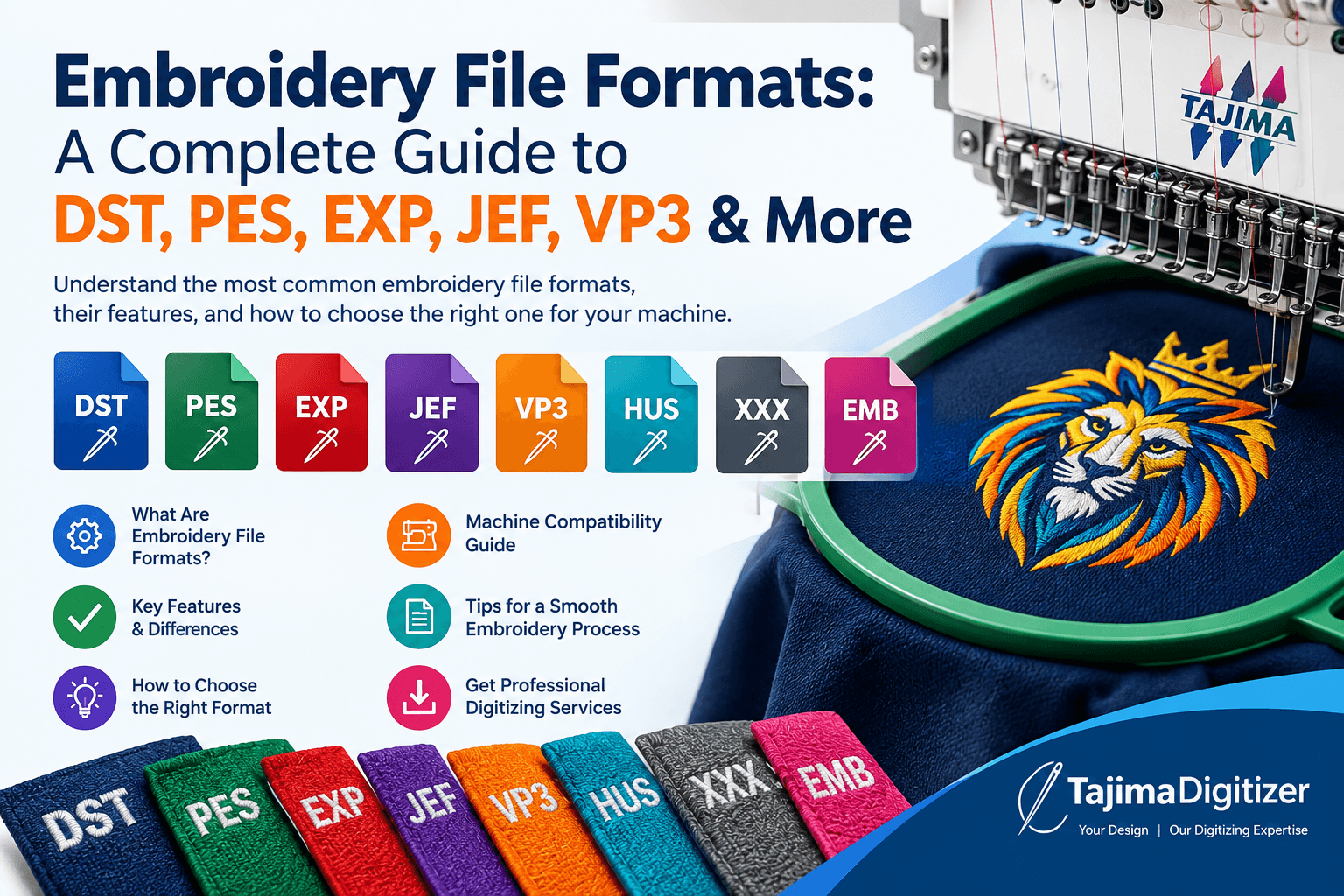
You've got a logo ready to stitch, but your machine keeps rejecting the file, or your embroidery shop asks for a format you've never heard of. That's the moment most people first run into embroidery file formats, and it's frustrating because the wrong extension can stall a whole production run. DST, PES, EXP, JEF, VP3 all look similar on the surface, but they're built for different machine brands and software, and mixing them up costs you time and money.
Here's the short answer: your file format depends entirely on your embroidery machine brand, not personal preference. Tajima and most industrial machines run on DST, Brother and Baby Lock use PES, Melco relies on EXP, Janome needs JEF, and Husqvarna Viking or Pfaff machines call for VP3 or HUS. Once you know your machine, picking the right machine embroidery file format stops being a guessing game.
In this guide, we'll break down what each of these digital file formats for embroidery actually contains, how they differ from vector files like AI or EPS, and which one to request when you send artwork out for digitizing. By the end, you'll know exactly which format fits your setup and your project.
Why embroidery file formats matter for your machine
An embroidery file isn't a picture. It's a set of stitch data that tells your machine exactly where the needle drops, when it changes thread color, and where it trims or jumps. That's the core difference between a JPEG and a DST file: one shows a design, the other runs it. When you send the wrong format to a machine, you're not asking it to interpret an image, you're feeding it commands it literally can't read, and that's why a mismatched file either throws an error or stitches out garbage.
What's actually inside the file
Every embroidery design format stores the same basic ingredients, just packaged differently for each machine brand. A typical file includes:
Stitch coordinates for every needle penetration point
Color change commands that tell the machine which thread to load next
Trim and jump instructions to cut thread or move without stitching
Underlay and density data baked into the stitch path itself
Machine-specific extras, like tension settings or sequin commands on formats built for specialty attachments
The stitch coordinates and color sequence are non-negotiable across formats. What changes is how that information gets encoded, and whether the format supports extras like appliqué placement or absolute versus relative stitch positioning. DST, for example, uses relative coordinates, which is part of why it's become the closest thing to a universal industrial standard.
Why the wrong format breaks your run
Here's where things go sideways in real shops. Load a PES file meant for a Brother machine onto a Tajima system expecting DST, and the machine either refuses to open it or, worse, misreads the header and stitches nonsense. Colors fire out of sequence, trims happen mid-design, and you burn thread, backing, and garment time on a run that has to be scrapped. This isn't a rare edge case. It's one of the most common support requests embroidery shops deal with.
The file format isn't a technicality, it's the difference between a clean run and a ruined garment.
Beyond outright failures, format mismatches cause subtler problems too. Some machine embroidery file formats don't preserve underlay or density settings the same way, so a design digitized for one machine can look thinner or denser when forced into another format through a bad conversion. That's why professional digitizers, including our team at Tajima Digitizer, handle the move from artwork to stitch file natively in the format your machine expects rather than converting after the fact.
Matching brands to formats
Knowing your machine's native format saves you from guessing every time you place an order. Here's the quick reference most shops keep taped near the machine:
Machine Brand Native Format Tajima, most industrial machines DST Brother, Baby Lock PES Melco EXP Janome JEF Husqvarna Viking, Pfaff VP3 or HUS Singer XXX Pfaff (older models) PCS
Once you match your brand to its format, you eliminate the single biggest cause of failed embroidery runs before the needle ever touches fabric. That's the whole reason digital file formats for embroidery exist as distinct standards rather than one universal file type: each machine's firmware was built around its own way of reading stitch data, and no amount of renaming a file extension changes what's actually encoded inside it.
How to choose the right embroidery file format
Picking the right file isn't about preference, it's about matching three things: your machine's native format, your software's read/write capability, and how the design will actually get used downstream. Get any one of those wrong and you'll be troubleshooting a stitch-out instead of running production.
Start with your machine's native format
Check your machine's manual or control panel settings first. That single detail narrows your options immediately, since a Tajima industrial head wants DST while a Brother home machine wants PES. If you're ordering from a digitizer, tell them the exact machine model, not just the brand, because some brands support more than one native format depending on the model year.
When software matters more than hardware
Your editing software adds a second layer to the decision. Programs like Tajima DG15 or Wilcom read multiple formats but save natively in one, so if you plan to tweak stitch density or resize a design after digitizing, ask which format keeps those edits editable rather than flattened. A flattened stitch file still runs fine on your machine, but you lose the ability to adjust density or underlay later without redigitizing from scratch.
Choose the format your machine reads natively first, then worry about everything else.
Ask your digitizer this before you order
Before you place an order, run through this short checklist so the file arrives ready to sew:
What's the exact machine brand and model you're running?
Does your software need a specific version of that format (some VP3 files behave differently across software generations)?
Will you need to edit the design later, or is this a one-time run?
Do you need a vector file (AI or EPS) alongside the stitch file for reprints or resizing?
Are you sending to multiple shops with different machines, meaning you might need two formats for one design?
That last point trips up a lot of buyers who outsource production across several shops. If your patch maker runs Tajima and your cap supplier runs Brother, you need both DST and PES from the same design, not one converted into the other after the fact. A good custom logo embroidery digitizing team will ask this upfront and deliver every format you need in a single order, so you're not stuck reformatting files under deadline pressure.
Comparing the most common embroidery file formats
Side-by-side, these embroidery design formats look nearly identical to a casual glance, a string of letters after a filename, but the internal structure varies enough to affect stitch quality, color accuracy, and how easily a design edits later. Knowing the technical differences helps you spot why a converted file sometimes looks worse than the original, even when the artwork never changed.
Format specs at a glance
The table below covers the formats you'll run into most often when ordering digitizing work or troubleshooting a machine.
Format Primary Machine Brand Coordinate Type Color Data Notes DST Tajima, most industrial Relative Limited (color changes only, no names) Closest thing to a universal industrial standard PES Brother, Baby Lock Absolute Full color names and thread charts Popular for home and hobby machines EXP Melco Relative Limited Common in commercial multi-head setups JEF Janome Absolute Full color data Built for Janome's software ecosystem VP3 Husqvarna Viking, Pfaff Absolute Full color data Newer format, replaced older PCS files HUS Husqvarna Viking (older) Absolute Limited Still found on legacy machines XXX Singer Relative Limited Simplified format for consumer machines
The extension tells you the machine, but the coordinate type tells you how the design will actually behave once it's edited.
Relative vs absolute coordinates, and why it matters
Relative formats like DST record each stitch as a distance from the last one, which keeps file sizes small but makes precise editing trickier since one wrong measurement shifts everything downstream. Absolute formats like PES or JEF store exact coordinates for every stitch, so editing software can move or resize sections without recalculating the whole path. Neither approach is objectively better, but it explains why a DST file converted into PES sometimes loses tiny alignment details that an absolute format would have preserved natively.
Color data differences you'll actually notice
Also worth flagging: color handling varies more than most buyers expect. PES and JEF files carry named thread colors and brand-specific charts, so opening one in compatible software shows you the exact palette the digitizer used. DST strips that information down to bare color-change commands, meaning your machine operator has to manually match thread numbers using a separate color sheet, which is exactly why professional digitizers always send a printed or PDF color chart alongside the stitch file.
How to convert between embroidery file formats
Converting a file changes its extension, not the quality of the stitches underneath. A converter reads the stitch data from one format and rewrites it into another, but it can't add information that was never there, like named thread colors in a DST file. That's the core limitation you need to accept before converting anything: you're repackaging existing stitches, not redigitizing the design from scratch.
Tools that handle basic conversion
Several free and paid tools convert between common embroidery design formats without much fuss. Options include:
Embird (paid, widely used by shops running multiple machine brands)
Wilcom TrueSizer (free viewer/converter from a major digitizing software maker)
My Editor and similar hobbyist tools bundled with home machine software
Online converters built into some digitizing storefronts, useful for quick one-off jobs
These tools work fine for straightforward swaps, like turning a DST into an EXP for a Melco machine, where both formats use relative coordinates and similar stitch logic.
Converting a format changes the wrapper, not the stitches inside it.
When conversion quietly wrecks your design
Problems show up when you convert between formats with different coordinate systems or density handling. Pushing a relative-coordinate DST into an absolute format like PES can shift stitch placement slightly, especially on designs with tight satin columns or small text. Sequin data, appliqué placement markers, and 3D puff foam instructions often don't survive conversion at all, since not every format supports those features natively. If your original design includes any specialty technique, check the converted file on-screen before you run it on fabric, not after.
Redigitizing beats converting for anything complex
Sometimes the smarter move skips conversion entirely. Complex logos, cap designs with curved stitch angles, or anything using 3D puff digitizing usually need to be digitized natively in each target format rather than converted after the fact, because the stitch path itself has to account for the machine's specific behavior. Ordering the design in every format you need up front costs less time than troubleshooting a converted file that stitches out wrong on press day. Tajima Digitizer builds designs natively in whichever machine embroidery file formats your production run requires, so you're never stuck forcing one machine's file onto another machine's firmware.
Common file format mistakes to avoid
Most failed embroidery runs trace back to a handful of predictable errors, not mysterious machine glitches. Recognizing these mistakes before you place an order or load a file saves you thread, backing, and a garment you can't take back.
Assuming the extension guarantees compatibility
Just because a file ends in .DST doesn't mean it's the right DST for your machine's firmware version. Some older Tajima controllers choke on newer DST variants that include extended color-change data, and some multi-head machines expect specific header information that a generic converter strips out. Never assume the extension alone tells the whole story; ask your digitizer to confirm the file was tested on your exact machine embroidery file formats setup, not just generated for the format family in general.
Skipping the color chart
Formats like DST and EXP carry limited color data, so operators sometimes guess thread numbers instead of checking a chart. That guesswork produces logos with swapped colors that look fine on screen but wrong on the shirt. Always request a printed or PDF color reference alongside any stitch file that uses a limited-color format.
Converting instead of redigitizing complex designs
Running a detailed cap logo or a 3D puff design through a quick converter often distorts stitch density and satin column angles. Converting saves a few minutes upfront but frequently costs hours of rework once the design stitches out wrong.
Skipping a test stitch to save five minutes usually costs you an hour of rework later.
Ignoring stitch count and density warnings
Software often flags density issues before you save the file, but rushed orders skip that step. High-density areas on stretch fabric pucker, and overly sparse fills leave gaps visible after washing. Watch for the checklist below before sending any file to production:
Confirm the format matches your machine's exact model, not just brand
Verify color chart accompanies any DST or EXP file
Test-stitch on scrap fabric before running the full order
Check stitch density against your fabric type, especially knits and caps
Keep a vector copy (AI or EPS) on hand for resizing without redigitizing
Working through that list takes two minutes and catches problems that otherwise surface mid-production, when correcting them costs far more than prevention ever does.
Making sense of embroidery file formats
Once you know your machine's native format, everything else falls into place. Embroidery file formats aren't arbitrary labels, they're built around how each machine's firmware reads stitch data, and matching the right format to your setup is what separates a clean run from a scrapped garment. Start with your machine brand, confirm your software's requirements, and never assume a converted file behaves exactly like a natively digitized one, especially on complex designs with dense satin columns or specialty effects.
Getting this right on your own is doable for simple jobs, but production deadlines don't leave much room for trial and error. That's exactly why shops send artwork out rather than gamble on a conversion tool. If you'd rather skip the guesswork entirely, see what professional embroidery digitizing services cover and get your design digitized natively in every format your machines actually need.