
Embroidery Digitizing
Best Embroidery File Format for Tajima Machines
By Tajima Digitizer Team · October 13, 2026
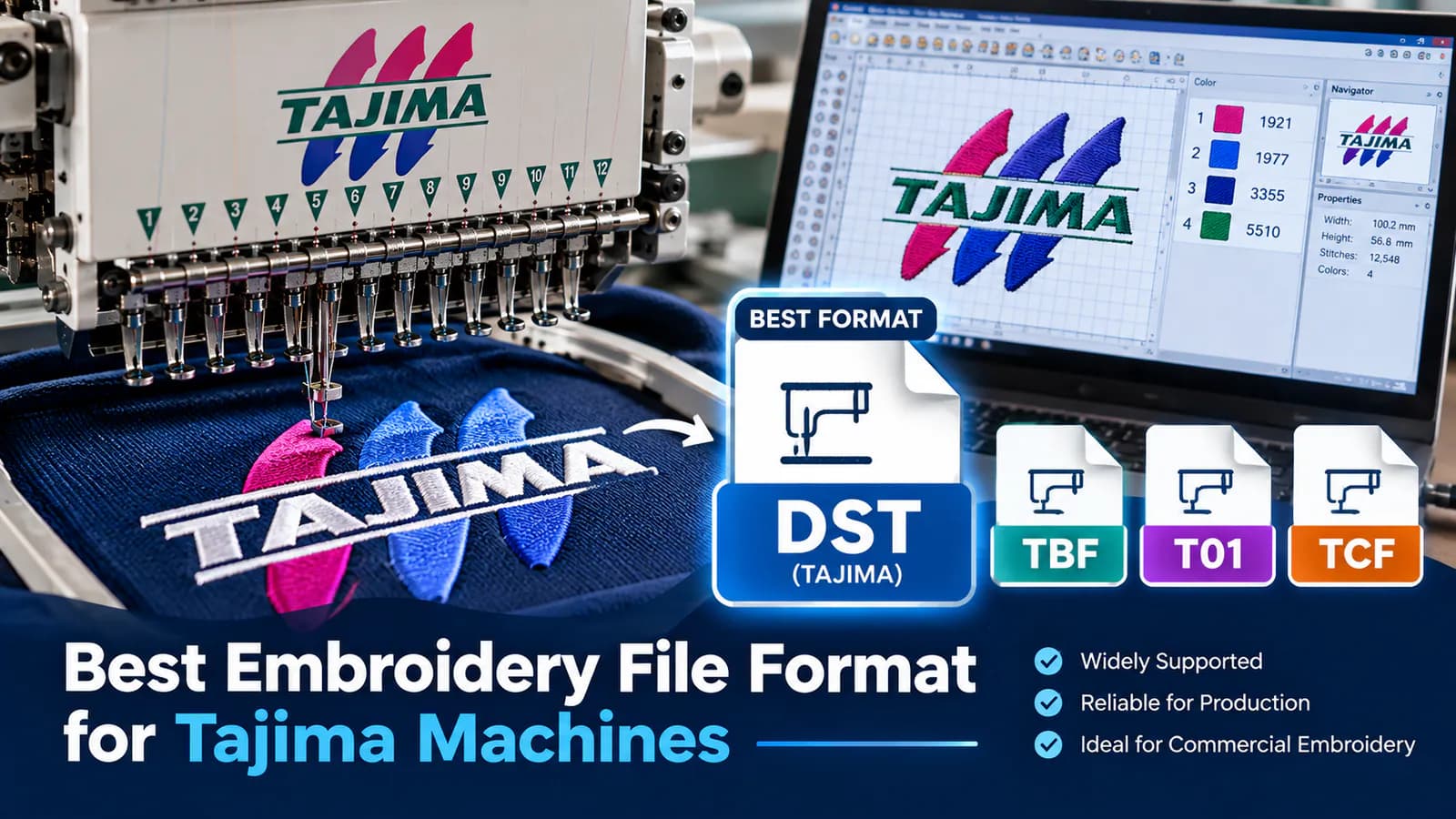
Best Embroidery File Format for Tajima Machines
You've finished your embroidery design, but your Tajima machine needs the correct file format before it can start stitching.
Should you use DST, TBF, PES, or EXP?
For most Tajima embroidery machines, DST (.dst) is the best file format. It's widely supported, reliable for commercial embroidery, and designed to store the stitch instructions your machine needs.
However, some Tajima models also support specialized formats.
Choosing the right format helps prevent loading errors, missing color assignments, and production delays.
At Tajima Digitizer, we prepare professional embroidery files for commercial machines, including Tajima systems.
This guide explains which file format to choose, how to prepare your design, and what to do when your Tajima machine won't read a file.
What Is the Best Embroidery File Format for Tajima Machines?
The best embroidery file format for most Tajima machines is DST (Tajima Stitch File).
DST is a machine embroidery format that stores stitch movements and commands rather than a normal image.
It tells your embroidery machine:
Where to place stitches.
How to move between design areas.
When color changes or stops occur.
The order in which the design should be stitched.
DST files are widely used for commercial embroidery, including company logos, uniforms, caps, patches, and promotional apparel.
For example, a digitized business logo might be saved as:
company-logo.dst
Your Tajima machine reads the stitch instructions and uses them to reproduce the design with embroidery thread.
If you're new to this format, read our detailed guide on what a DST embroidery file is.
DST vs. TBF: Which Tajima File Format Should You Use?
Although DST is the standard choice for most jobs, some Tajima machines support additional formats.
File format | Best use | Key detail |
|---|---|---|
DST | Most standard Tajima embroidery | Widely supported stitch format |
TBF | Compatible Tajima machines needing needle addressing | Stores needle-assignment information |
T01 | Compatible Tajima chenille machines | Used for specialized chenille work |
TCF | Certain Tajima models, including SAI | Check model-specific compatibility |
DST: Best for Everyday Commercial Embroidery
DST works well for common embroidery applications such as corporate logos, uniforms, jacket backs, and standard cap designs.
It's also supported by many commercial embroidery programs.
For most embroidery shops running standard Tajima equipment, DST is the safest format to request first.
TBF: Better for Some Advanced Applications
TBF stands for Tajima Binary Format.
Unlike DST, it can contain needle-addressing information.
This makes it useful for compatible Tajima machines that require more detailed needle assignments or certain specialized attachments.
TBF isn't automatically better for every job. Use it when your machine and production setup require it.
T01 and TCF: Model-Specific Formats
T01 is associated with compatible Tajima chenille embroidery systems.
TCF is supported by certain Tajima models, including the Tajima SAI.
Before selecting either format, check your machine's manual or supported file list.
Quick recommendation: Choose DST for standard Tajima embroidery unless your equipment specifically requires another format.
Does a Tajima DST File Save Thread Colors?
One important limitation of DST is that it doesn't normally store exact thread-color information.
It can include color-change commands, but those commands don't specify your complete thread brand and shade numbers.
For example, a logo might require:
White lettering.
Blue background detail.
Red outline.
The DST file can preserve the sequence of those color changes without identifying the exact thread shades.
The machine operator must assign the correct needle positions and thread colors.
Production tip: Keep a separate color chart with your DST file, especially when embroidering corporate logos or repeat uniform orders.
At Tajima Digitizer, our logo digitizing service prepares stitch files with attention to readable lettering, efficient sequencing, and the brand's required color-change order.
How to Convert a Logo to DST for Tajima Embroidery
Have a JPG, PNG, PDF, or vector logo?
You can't turn it into a proper DST embroidery file simply by changing the filename.
The artwork must first be digitized.
Step 1: Prepare the Artwork
Start with a clear logo.
High-resolution images and vector files such as AI, EPS, or SVG provide useful source artwork.
Step 2: Digitize the Design
Embroidery digitizing converts the artwork into stitch instructions.
The digitizer chooses stitch types, density, underlay, pull compensation, and sewing order.
These settings affect the finished embroidery.
Step 3: Export the DST File
Once digitizing is complete, export the design using a Tajima-compatible DST option.
If you're converting an existing embroidery stitch file, inspect it before exporting. Changing formats alone won't repair a poorly digitized design.
Step 4: Test the Design
Load the file into your machine or compatible embroidery software.
Check the finished dimensions, color-change sequence, and stitch count before testing the design on fabric.
For a reliable result, use a file digitized for the actual garment and embroidery size.
How to Load a DST File Into a Tajima Machine
Most modern Tajima workflows allow embroidery files to be transferred through supported USB or network methods.
The exact procedure depends on your machine model.
A typical USB workflow is:
Save the finished DST file on your computer.
Copy it to a compatible USB drive.
Connect the drive to your Tajima machine.
Open the machine's design-loading menu.
Select the design and check its dimensions.
Assign the thread-color sequence and needle positions.
Confirm the hoop area and perform a test stitch-out.
Some older Tajima machines use serial connections or other transfer methods.
If the file doesn't appear, check your manual's USB requirements, supported folders, file naming rules, and machine-format settings.
Why Won't My Tajima Machine Read a DST File?
Even a DST file can fail to load when the transfer method or file settings are incorrect.
Here are common problems and solutions.
Problem | Possible cause | What to do |
|---|---|---|
DST file doesn't appear | USB or folder incompatibility | Check the machine's transfer requirements |
Machine rejects the design | Unsupported or damaged file | Re-export in the correct format |
Thread colors look wrong | DST lacks exact color information | Assign colors and needles manually |
Design exceeds the hoop | Incorrect embroidery dimensions | Check the actual design size |
Embroidery looks distorted | Poor digitizing or unsuitable resizing | Review the stitch file |
Unexpected trims or jumps | Export or command interpretation | Check machine settings and stitch sequence |
Can You Rename a PES File to DST?
No.
Changing logo.pes to logo.dst doesn't convert the file.
PES and DST use different file structures. Use compatible embroidery software to perform a proper conversion.
For more information, see our DST vs. PES vs. EXP vs. JEF comparison.
How to Get Better Embroidery Results on Tajima Machines
Choosing DST is only the beginning.
The quality of your finished embroidery also depends on the design's stitch construction.
Match the File to the Fabric
A logo prepared for a stable woven shirt may not work equally well on a stretchy polo.
Fabric type affects stitch density, support, and pull compensation.
Use the Correct Design Size
Avoid drastically enlarging or shrinking an existing DST file.
For example, a 3.5-inch chest logo may need to be redigitized for a 10-inch jacket-back design.
Check Stitch Density and Underlay
Excessive density can cause stiff embroidery, puckering, and thread breaks.
Insufficient support may create gaps or distorted shapes.
A professional digitizer balances these settings according to the artwork and garment.
Always Test Before Bulk Production
For an order of 100 embroidered uniforms, test the file on matching fabric first.
Check lettering, outlines, color changes, and fabric movement.
A short test can prevent expensive production mistakes.
Professional Tajima DST Digitizing at Tajima Digitizer
At Tajima Digitizer, we create machine-ready embroidery files for uniform companies, apparel brands, and embroidery businesses.
Our service includes hand-digitized designs with attention to stitch density, underlay, sequencing, and finished size.
Standard logo digitizing starts at $10 USD, with a typical turnaround of 4–12 hours, depending on the design.
We provide DST and other supported embroidery formats, plus rendered stitch-out previews.
Eligible corrections to the original order are available within 30 calendar days of delivery.
To get the right file, simply provide your artwork, Tajima machine model, fabric, and finished embroidery size.
You can learn more about our embroidery digitizing ordering process.
Frequently Asked Questions
What file format does a Tajima embroidery machine use?
Most standard Tajima machines use DST files. Some models also support TBF, TCF, or specialized formats. Always confirm your machine's requirements.
Is DST better than PES for Tajima machines?
DST is generally the better choice for standard Tajima embroidery because it is the widely supported Tajima format. PES is mainly associated with Brother and Baby Lock equipment.
Does DST include embroidery thread colors?
DST contains stitch and color-change instructions but doesn't normally preserve exact thread shades. Keep a separate color chart and assign the correct needles.
Can I convert PNG to DST for a Tajima machine?
Yes, but the PNG artwork must first be converted into stitch instructions through embroidery digitizing. Renaming the image doesn't create a working DST file.
Can I use the same DST file for caps and shirts?
Sometimes, but caps and flat garments have different stitching requirements. Separate digitized versions may be needed for reliable results.
Final Thoughts: Choose the Right File for Your Tajima Machine
For most standard embroidery projects, DST is the best embroidery file format for Tajima machines.
It's widely supported and suitable for everyday commercial embroidery.
However, some advanced or specialized Tajima models may require TBF, TCF, or another format.
The important thing is to confirm machine compatibility and use a properly digitized stitch file.
At Tajima Digitizer, we help embroidery businesses convert logos and artwork into professional embroidery files prepared for their production requirements.
Need a DST file for your Tajima embroidery machine?
Explore our professional embroidery digitizing service or upload your artwork for a custom quote.
Get a machine-ready embroidery file prepared for your Tajima equipment and your next production job.