
Embroidery Digitizing
What Is an EXP File? Complete Embroidery Guide
By Tajima Digitizer Team · October 13, 2026
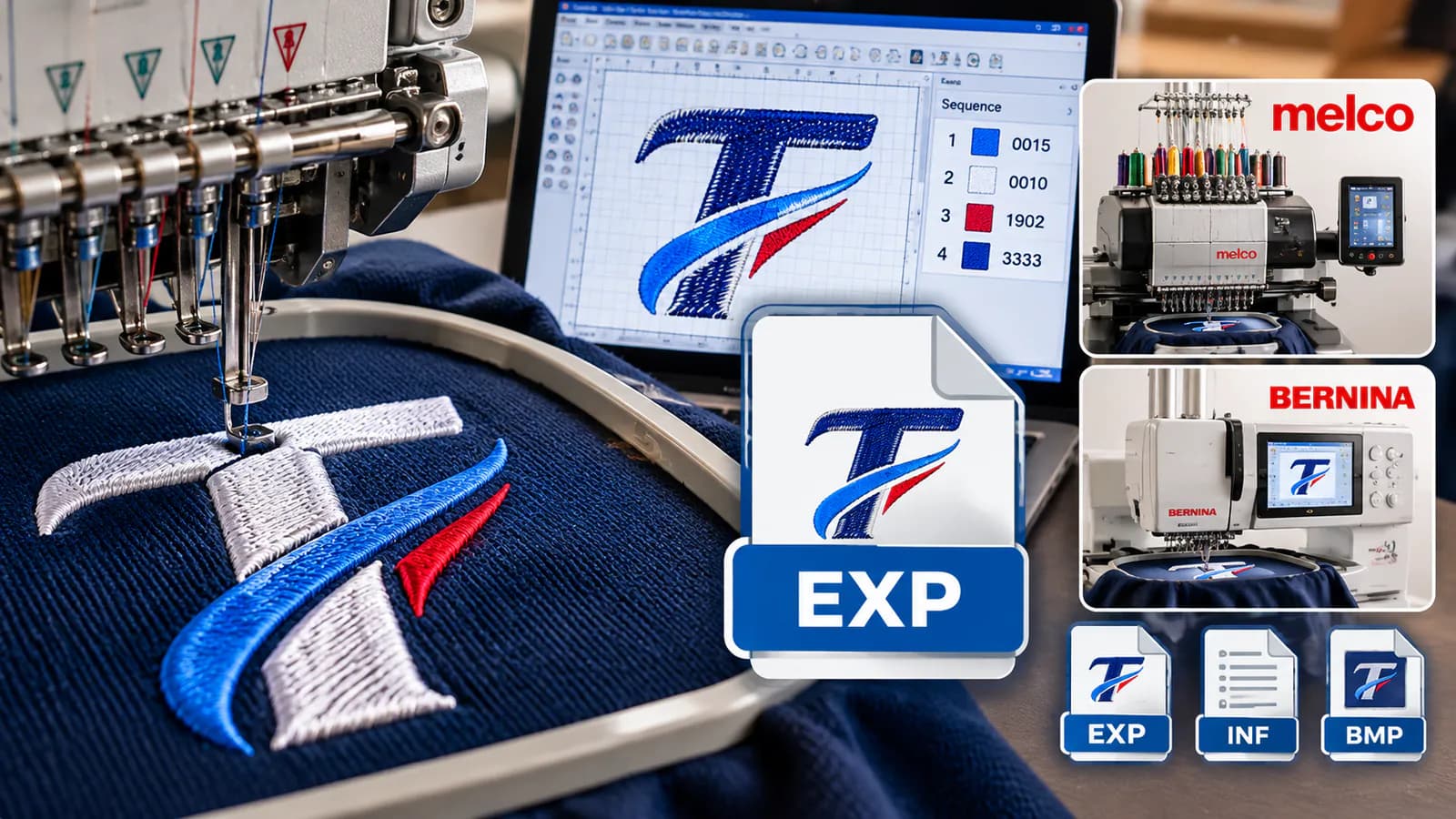
What Is an EXP File? Complete Embroidery Guide
You've downloaded an embroidery design, but the file ends in .EXP. What does that mean, and will your embroidery machine recognize it?
An EXP file is a machine embroidery format that stores stitch instructions for compatible embroidery equipment. It's commonly used with Melco embroidery systems and certain BERNINA machines.
Unlike a JPG or PNG image, an EXP file tells the machine where to place stitches, when to move between design areas, and when to change colors.
But there's one important detail: not all EXP workflows handle thread colors the same way.
At Tajima Digitizer, we prepare professional embroidery files in EXP, DST, PES, JEF, and other popular formats.
This guide explains what an EXP file is, how to open one, which machines support it, and how to convert artwork into an embroidery-ready EXP design.
What Is an EXP File in Embroidery?
An EXP file is a stitch-based embroidery file commonly associated with Melco's expanded embroidery format.
It contains the information compatible embroidery equipment needs to reproduce a digitized design.
This information includes:
Stitch coordinates and movement instructions.
Jump stitches between design areas.
Color-change or stop commands.
The sequence in which stitches are sewn.
For example, a digitized company logo might be saved as:
company-logo.exp
The file contains embroidery instructions rather than a normal picture of the logo.
It also differs from a fully editable embroidery master file, which may retain information about stitch objects, shapes, and digitizing settings.
In simple terms: An EXP file tells the embroidery machine how to sew a design, not how the original artwork was drawn.
Which Embroidery Machines Use EXP Files?
EXP is mainly associated with two embroidery workflows: Melco and BERNINA.
Embroidery system | EXP compatibility | Important detail |
|---|---|---|
Melco | Common commercial format | Standard EXP may not preserve actual thread colors |
BERNINA | Supported by many embroidery models | BERNINA USB EXP may use companion files |
Other embroidery brands | Varies by model | Check the manufacturer's supported formats |
Melco EXP Files
Melco embroidery machines commonly use EXP files for commercial embroidery production.
These files store stitch movements and machine commands, allowing compatible systems to sew digitized artwork.
However, standard Melco EXP files generally don't include complete thread-color information.
If you open a design and see unexpected colors, the stitch file may still be correct.
Check the color-change sequence and assign the proper thread colors in your software or machine workflow.
BERNINA EXP Files
Many BERNINA embroidery machines also support EXP, but their USB workflow can require additional files.
A BERNINA USB EXP design commonly includes:
EXP: The embroidery stitch design.
INF: Thread-color information.
BMP: A design preview image used by certain models.
For example, you might receive:
company-logo.exp
company-logo.inf
company-logo.bmp
Keep these files together when your BERNINA model requires them.
Without the INF file, the machine may display default colors instead of the intended shades.
Always follow the instructions for your specific BERNINA model because file requirements can vary.
How to Open an EXP Embroidery File
You cannot properly view or edit an EXP file with a regular photo viewer.
You need embroidery software that supports the EXP format.
Step 1: Open Compatible Embroidery Software
Use software such as Melco DesignShop, compatible BERNINA embroidery software, or another embroidery program that supports EXP imports.
Step 2: Import the EXP File
Choose the software's Open or Import function.
Locate your .EXP file and load the design.
Step 3: Check the Design
Before stitching, review:
Finished embroidery dimensions.
Stitch count and sequence.
Color-change positions.
Jump stitches and trims.
Compatibility with your selected hoop.
Step 4: Test the Embroidery
A design that looks correct on-screen can still create problems on fabric.
Run a test stitch-out using suitable thread, backing, and fabric before starting a large production order.
How to Convert JPG, PNG, or SVG to EXP
Many customers ask whether they can convert a JPG, PNG, or SVG logo directly into an EXP embroidery file.
The answer is yes, but the artwork must first be digitized.
Simply renaming logo.png to logo.exp will not create a working embroidery design.
Here's how the process works.
Step 1: Prepare Your Artwork
Start with a clear logo or design.
Vector files such as AI, EPS, and SVG can help preserve clean outlines. High-resolution PNG and JPG files are also useful.
Step 2: Digitize the Design
A digitizer converts the artwork into embroidery stitches.
This involves selecting stitch types, density, underlay, pull compensation, and sewing order.
Step 3: Export the EXP File
Once the design is digitized, compatible software can export the stitch instructions in EXP format.
For BERNINA USB use, select the appropriate machine-specific export option rather than assuming a standard Melco EXP file will provide everything needed.
Step 4: Test Before Production
Load the exported file into your embroidery software or machine.
Confirm its dimensions, thread-color sequence, and stitch quality.
Tajima Digitizer's professional embroidery digitizing service converts artwork into machine-ready files, including EXP for compatible embroidery systems.
Can You Convert DST or PES to EXP?
Yes. Compatible embroidery software can often convert existing DST or PES stitch files into EXP.
The general process is straightforward:
Open the existing embroidery file.
Check its design size and stitch sequence.
Choose the correct EXP export option.
Save the converted file.
Review and test the design.
However, conversion doesn't automatically improve embroidery quality.
If the original file contains poor stitch density, excessive underlay, or distorted lettering, those problems may remain.
File conversion may also lose color details or other information that the original format cannot preserve during export.
Whenever possible, export from the original editable digitizing file rather than repeatedly converting between stitch formats.
For a broader comparison, read our guide to DST, PES, EXP, and JEF embroidery formats.
Common EXP File Problems and How to Fix Them
Even a correctly digitized design can encounter compatibility issues.
Use this troubleshooting table when your EXP file doesn't work as expected.
Problem | Possible cause | Recommended fix |
|---|---|---|
EXP file won't open | Unsupported software or file issue | Check compatibility and re-export |
Wrong thread colors | Missing color information | Check the color chart or INF file |
BERNINA design has no preview | Missing companion file or incompatible workflow | Re-export using the correct BERNINA option |
Design exceeds hoop size | Incorrect dimensions | Check the embroidery area |
Stitches look distorted | Resizing or digitizing issue | Review the original design |
Converted EXP stitches poorly | Problem in the source file | Correct the digitizing, then re-export |
Why Does My EXP File Show the Wrong Colors?
This is one of the most common questions about EXP embroidery files.
Standard Melco EXP files don't necessarily preserve exact thread colors.
Your software may display substitute shades even when the stitch sequence is correct.
For BERNINA USB EXP, check whether the appropriate INF color file is present.
A different preview color does not automatically mean the design is damaged.
Why Won't My Embroidery Machine Read an EXP File?
First, confirm your machine supports EXP.
Then check the file-export method, embroidery size, USB transfer requirements, and any companion files.
Also make sure the file is not simply an image that someone renamed with an EXP extension.
EXP vs. DST vs. PES: What's the Difference?
EXP, DST, and PES are embroidery machine file formats, but they are associated with different equipment and software workflows.
Format | Commonly used with | Key consideration |
|---|---|---|
EXP | Melco and compatible BERNINA systems | Color data may require additional handling |
DST | Tajima and many commercial machines | Widely supported, but limited color information |
PES | Brother and Baby Lock | Supports machine-specific design and color information |
No single format is best for every embroidery machine.
The correct choice depends on the brand, model, and supported file types.
If you're unsure which format to request, Tajima Digitizer's embroidery file types guide explains the differences between common formats.
Why Professional EXP File Digitizing Matters
The correct file extension makes your design compatible with a machine. Good digitizing helps the design stitch cleanly.
A poorly prepared EXP file may cause:
Unclear lettering.
Excessive stitch density.
Fabric puckering.
Unnecessary trims or thread breaks.
Distorted outlines.
Professional embroidery digitizing considers the finished size, fabric, stitch types, and machine requirements before the file is exported.
At Tajima Digitizer, we provide hand-digitized files for corporate logos, uniforms, promotional apparel, caps, and other embroidery applications.
Our standard digitizing services start at $10 USD, with a typical turnaround of 4–12 hours, depending on the design.
We provide rendered stitch-out previews and support eligible corrections to the original order within 30 calendar days of final delivery.
For customers using BERNINA equipment, provide the exact machine model so the required EXP workflow and any companion-file needs can be confirmed.
Frequently Asked Questions About EXP Files
What does EXP mean in embroidery?
EXP refers to an expanded, stitch-based embroidery format commonly associated with Melco embroidery systems. It is also used in compatible BERNINA workflows.
Can I open an EXP file without an embroidery machine?
Yes. Compatible embroidery software can display EXP stitch designs on a computer.
However, a regular image viewer cannot interpret the file properly.
Is EXP the same as DST?
No. Both contain embroidery stitch instructions, but they are different formats associated with different machine systems.
Compatible embroidery software can often convert between them.
Does an EXP file include thread colors?
Standard Melco EXP generally does not preserve exact thread colors.
BERNINA USB EXP workflows can use companion INF files to provide color information.
Can I convert a PNG image to EXP for free?
Some software offers embroidery conversion tools, but a PNG image must still be translated into stitches.
Automatic conversion may require cleanup or manual digitizing to produce reliable embroidery.
How much does EXP embroidery digitizing cost?
At Tajima Digitizer, standard embroidery digitizing starts at $10 USD.
The final price depends on artwork complexity, finished size, and embroidery requirements.
Conclusion: Get the Right EXP File for Your Machine
Understanding what an EXP file is helps you avoid embroidery compatibility problems.
EXP is a stitch-based format commonly used with Melco and supported BERNINA systems.
But file compatibility is only one part of successful embroidery.
Your design also needs correct stitch density, underlay, sequencing, and settings suited to the finished garment.
At Tajima Digitizer, we help embroidery businesses, uniform suppliers, and apparel brands convert artwork into professional, machine-ready embroidery files.
Whether you need EXP, DST, PES, JEF, or another supported format, our team can prepare the design for your specific project.
Need a professional EXP embroidery file?
Explore our custom embroidery digitizing service or upload your artwork to request a quote.
Get your design ready for reliable machine embroidery with Tajima Digitizer.